
Learn-How To Install Paid Apps Totally Free :
You Can Install Paid Appliation on android just with using aptoide application : Aptoide is an Android application store that is in fact a collection of several application stores. This enables great availability of Android applications, but as a result the Aptoide appstore functions a little differently to most other Android application stores. In this article you will learn how to make the most out of the Aptoide app store.
1 Getting started
To run Android paid applications on your android device, you need to download Aptoide aoolication. UWill Find The link to download Aptoide under the article (it's a verry simple application and easy to use)
2 Downloading applications from Aptoide
Launching the Aptoide application will take you to Aptoide's front page. Here you will find the most popular applications, as well as new interesting applications added to Aptoide.
Below are screenshots showing the front page view on an an android phone and Tablet:
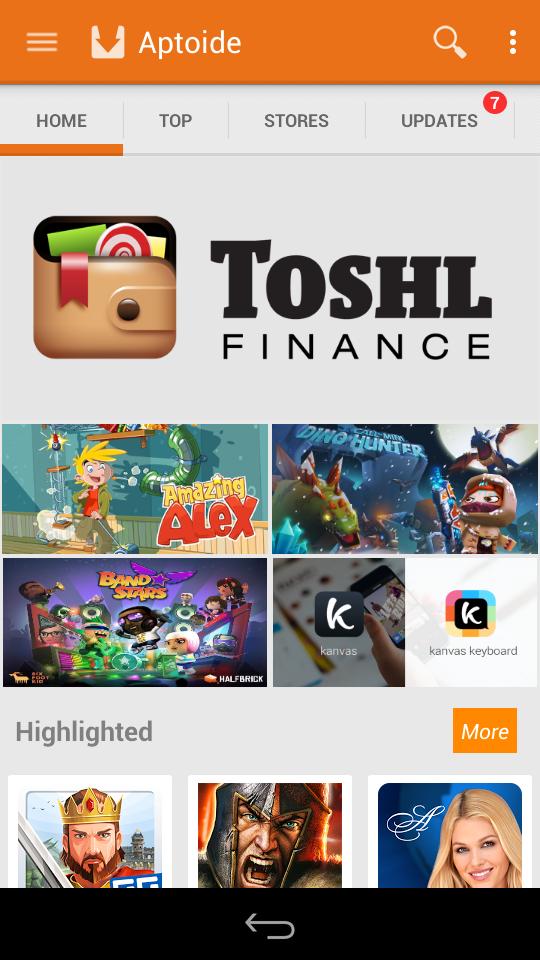
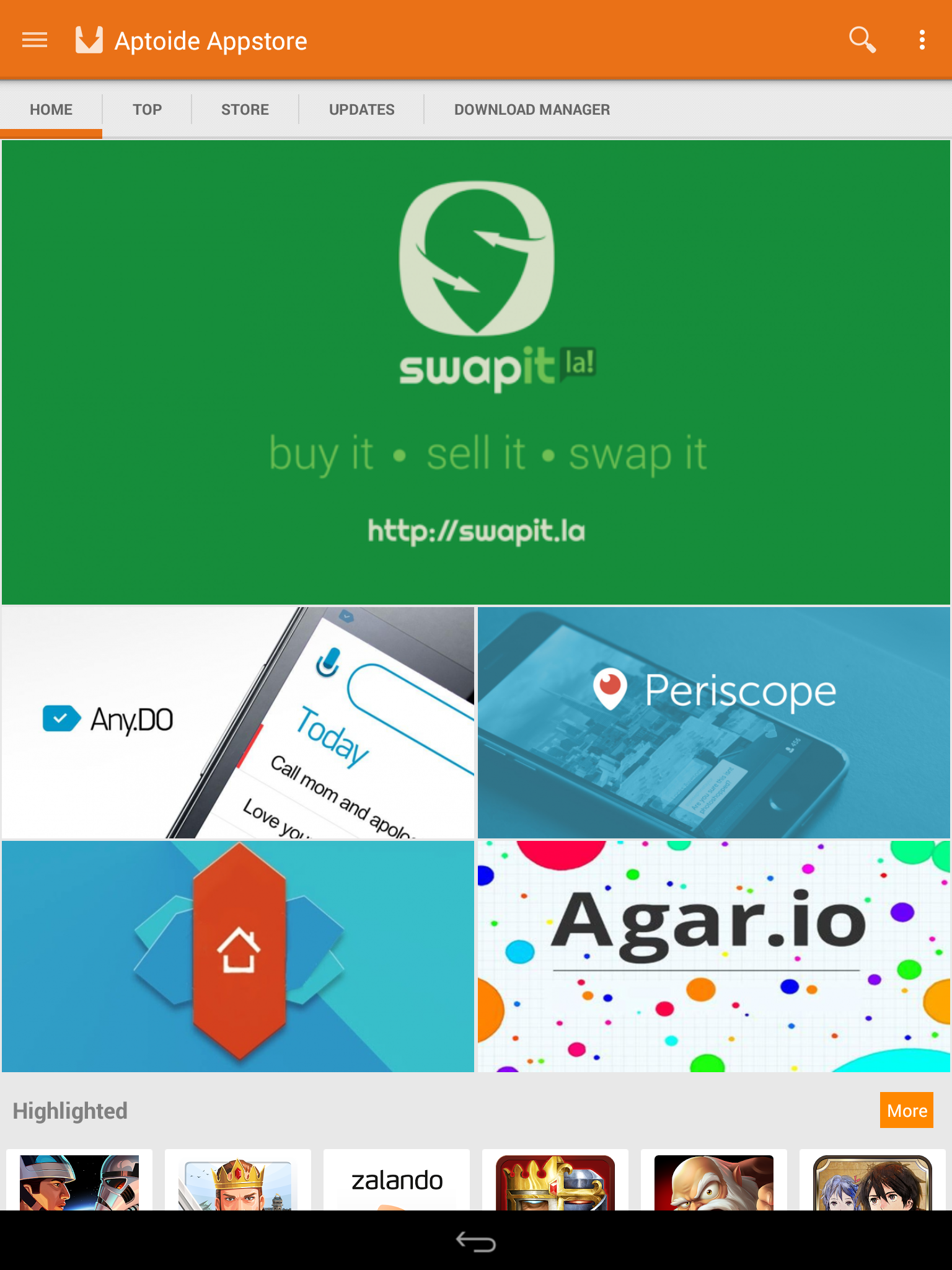
Swiping left will reveal all the tabs in Aptoide: “Home”, “Top”, “Stores”, “Updates”, “Social timeline”, “Download manager”.
2.1 Using search
Search for your favorite app by tapping on the magnifying glass icon in the top-right corner of any view within Aptoide:


Can't find the apps you are looking for?
Aptoide also offers a method of extending your search beyond the Stores added to your Aptoide client. just press the "Search Other Stores" feature in the bottom of the research page .
2.2.1 Installing a specific version of an application
You can also download different versions of applications from Aptoide. Should you choose to download an older version of the application currently on your device, Aptoide will first uninstall the application in question, and then download the requested version on to your device. No application data is lost in this process.
Below is a step-by-step instruction on downgrading an example application. The steps are carried out an an android Tablet, but will work for the phone too:
1) Browse to the page of the application in question:
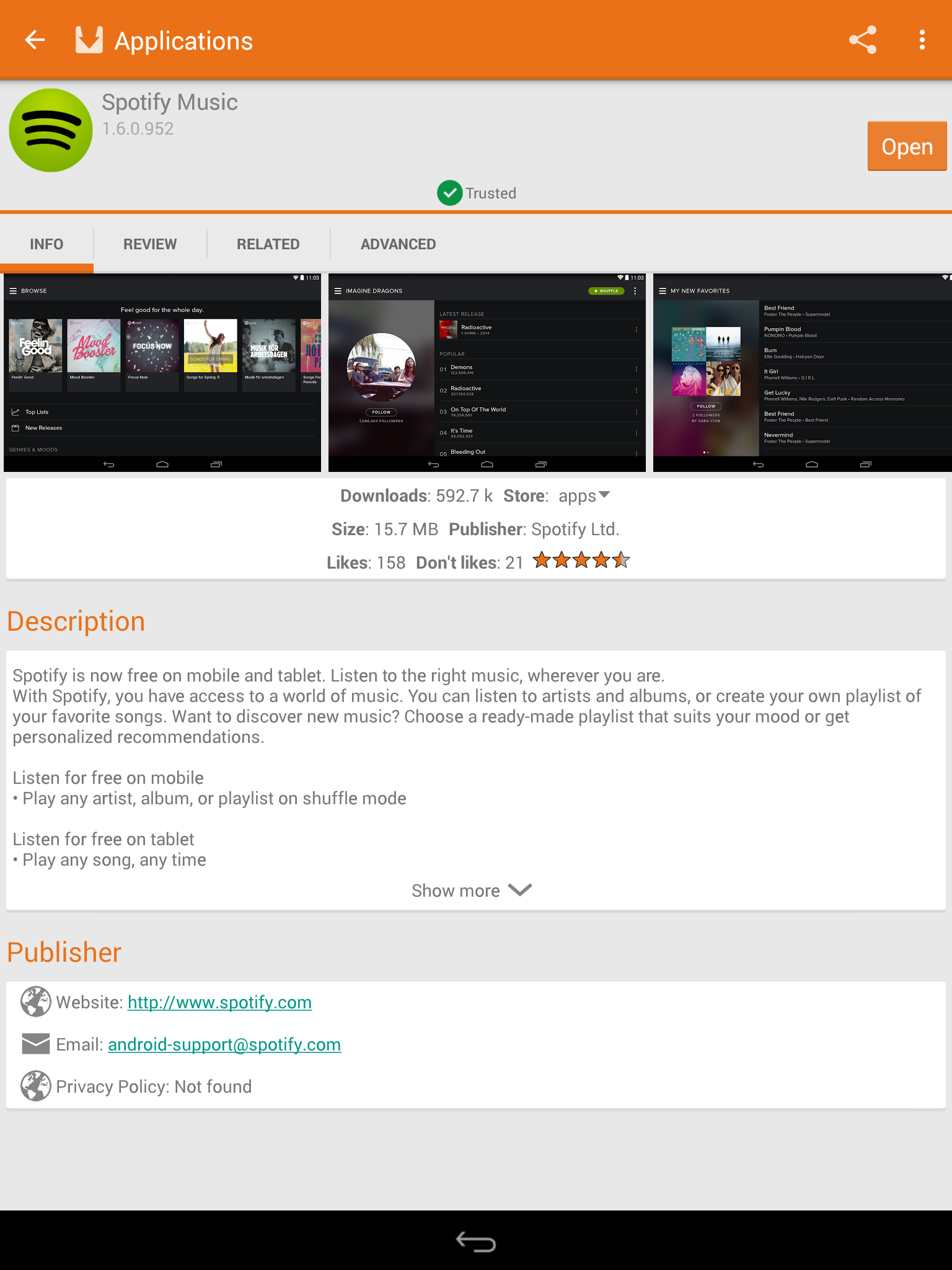
2) Tap on the "Related" tab, and see the versions listed under the "Multiversion" heading:

3) Select the version you are interested in (for more options you can press the +More button). This will take you to the download page of said application version. Then confirm by pressing "Downgrade":

2.2 Installing applications
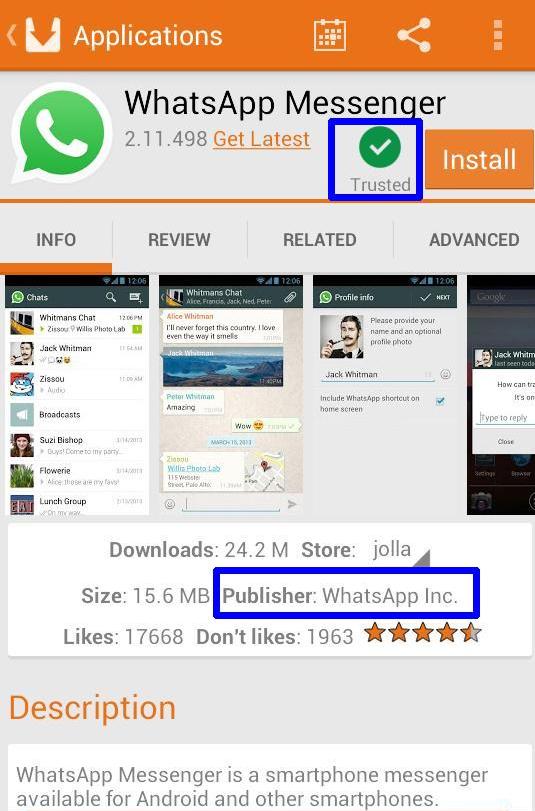
Tapping on a search result will produce the application page of the selected application.
Before tapping 'Install' check that the app has the trusted stamp and that the publisher is correct. Otherwise you might get an application which is not authentic. In the worst case it can be some kind of exploitation attempt.
2.3 Uninstalling applications
You can also uninstall applications by using Aptoide. You can also uninstall applications via the Application Grid, but uninstalling this way ensures that Aptoide is able to keep up to date with which applications you have installed.
You uninstall an application by going to the “Updates” page, which shows all Android applications installed on your device:
You uninstall an application by going to the “Updates” page, which shows all Android applications installed on your device:

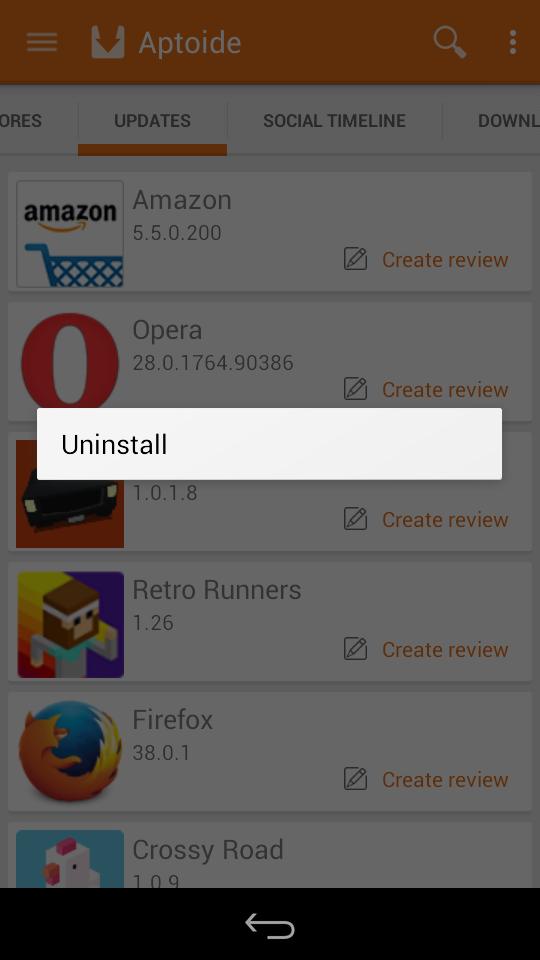
Long press on any application to reveal the "Uninstall" pop-up:
2.4 Updating applications
Aptoide notifies you when there are updates available to your applications. To download the udpates, go to the "Updates" tab from the main page, and tap "Update all":
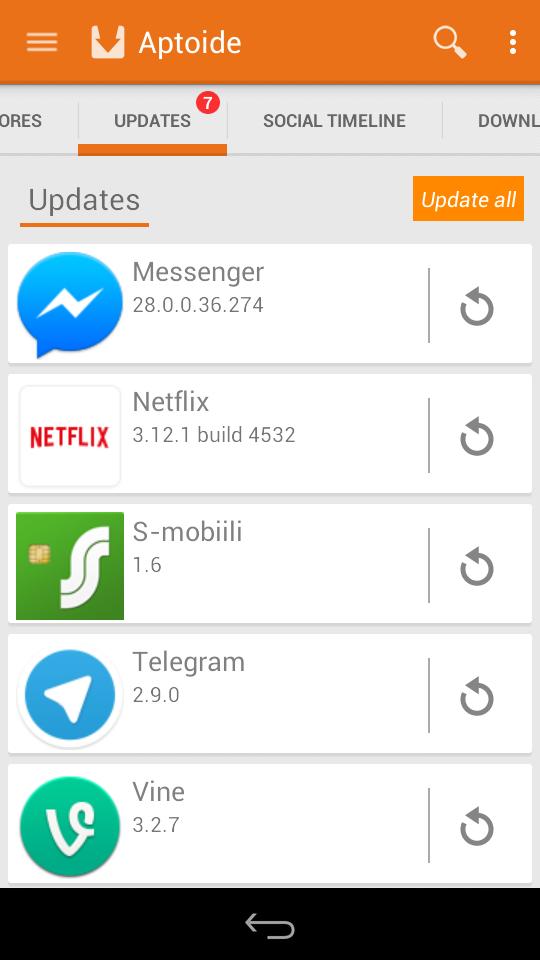
If you swipe down in this page, Aptoide will refresh the availability of updates.
To see the progression of your application updates, go to the tab "Download manager":

3 Stores within Aptoide
As mentioned before, Aptoide is in fact a collection of several application stores. Anyone is free to start their own application store, and publish the store on Aptoide. You can then “subscribe” to these stores to broaden your search results.
To see which stores you are subscribed to, return to the main view of Aptoide and tap on the tab that reads "Stores":
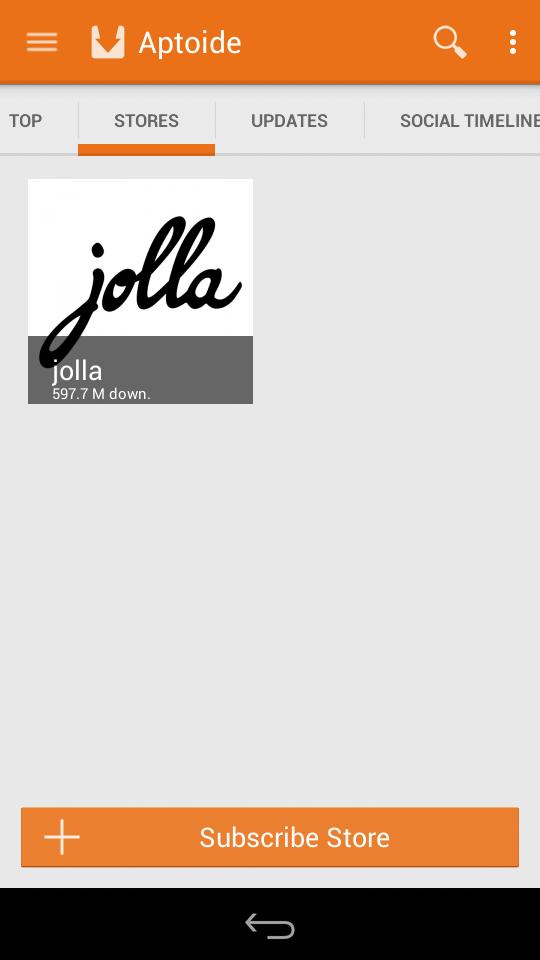
3.1 Subscribing to stores
For most users being subscribed to this application store is enough. However, should you ever want to add another store to Aptoide, please follow the instructions below.
1. In the "Stores" tab, tap on "+ Subscribe Store" button.
2. You will see the pop-up box requesting the name of the store:
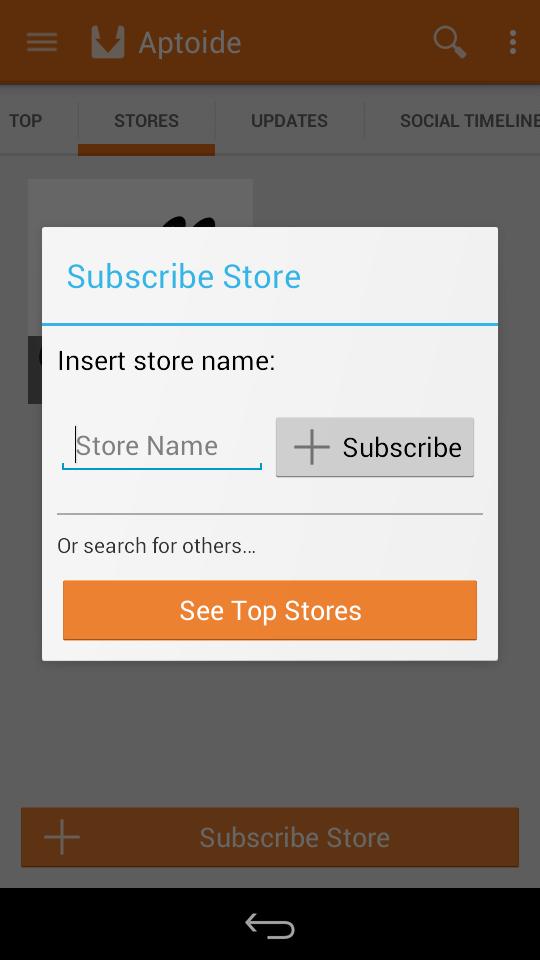
3. Type in the store name you want to add, or to browse popular stores tap on “See Top Stores”. This will open up a browser to show the results:
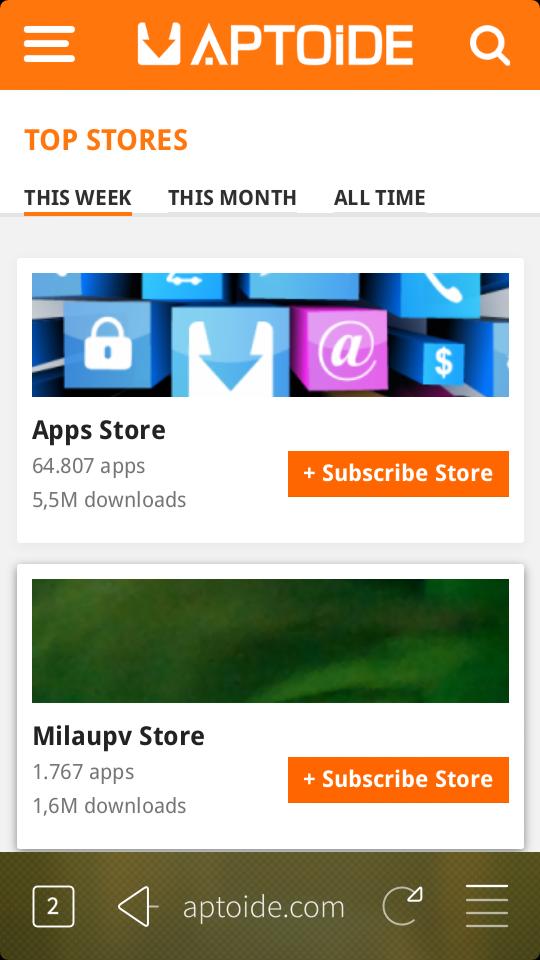
4. After finding a store you wish to add, return to Aptoide to enter the name of the store.
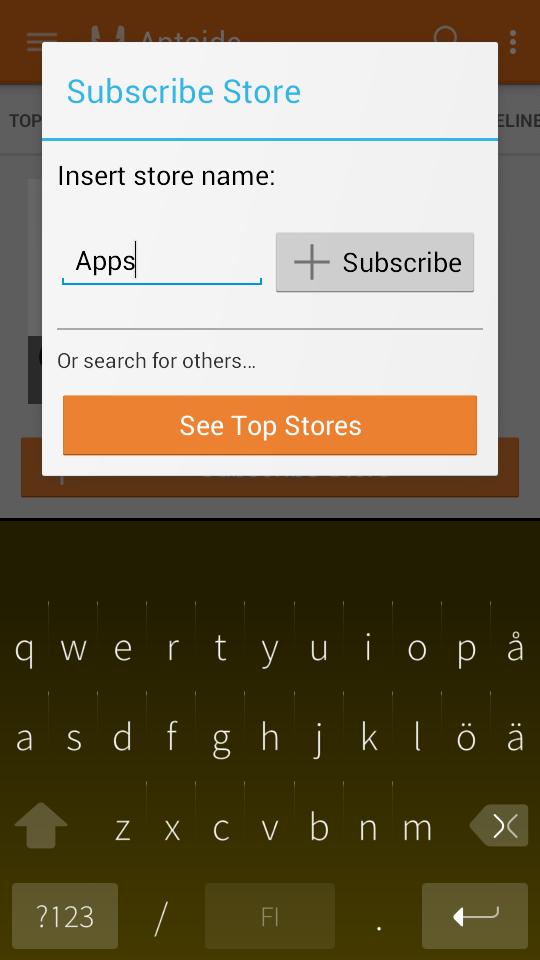
Once you have subscribed to a store in Aptoide, you will receive notifications for any updates to applications present in these stores.
>>>>> Download Now
RépondreSupprimer>>>>> Download Full
>>>>> Download LINK
>>>>> Download Now
>>>>> Download Full
>>>>> Download LINK